
There are four ways to change many Shopify products at once. The admin bulk editor is a table: fast for a screenful of rows, no filter logic beyond the product search, no formulas, no undo. CSV is a file round trip: handles any size, and every column you export comes back with the import, whether you meant it to or not. Bulk-edit apps add filters, formulas, schedules and a backup window, at a subscription and a task to configure per change. Chat tools take the instruction as a sentence, show the rows before writing, and save the before values for a revert.
Which one to use depends on where the change starts. If it starts in a spreadsheet, use the spreadsheet. If it repeats on a calendar, save it as a task. If it starts as a sentence from a person, do not build a spreadsheet or a task to say it. Most stores past a few thousand products use two of the four.
Whatever the tool, three questions before it writes: how many rows, what will each row look like after, and how do I get back. A tool that cannot answer all three gets a ten-product test first.
What a bulk edit is
A bulk edit is one rule applied to many rows. The rows are products, or variants, or variants at a location. The rule is a constant ("set vendor to Kestrel"), a transform ("increase by 10 percent, round to .99"), a template ("title plus the collection name"), or per-row generation (alt text written from the image). The four methods below differ in which rules they can express and how much of the result they show you before writing.
The level matters more than merchants expect. A price is per variant. A tag is per product. Inventory is per variant per location. A rule written at the wrong level either fails or touches more rows than intended, and that is the most common way a bulk edit does something different from what was meant.
The admin bulk editor
Products, select some, "Bulk edit". A table with the columns you choose: price, compare-at price, quantity, tags, status, vendor, type, a few metafields. Type into cells, or select a column and set one value for every row. Save.
It is the right tool when you can see every row you are changing. Twenty products, one field, values you can type: the bulk editor is faster than anything else. It has no filter beyond the product list search and its saved views, no formula (you cannot say "increase by 15 percent"; you type each new price), and no undo. Variant rows are inside each product and have to be expanded one product at a time. Pages are fifty products; a change across five hundred is ten pages.
It does reach a few things the other methods reach awkwardly: sales channel publishing is a column, and so is product status, and both are single clicks per row.
- Good for: a screenful of rows, one or two fields, literal values.
- Cannot: filter by rule, apply a formula, undo.
- Trap: the table saves the moment you click Save. Read the column before.
CSV
Export, edit in a sheet, import. It scales to any size and it is auditable: the file is the record of the change. It is also the method with the most ways to go wrong, because the spreadsheet is a general tool that does not know what a Shopify product is.
Five things go wrong often enough to list. Tags in the CSV replace the product's tags; they do not add to them. Spreadsheets reformat "29.99" into a number with the locale's decimal separator, strip the leading zero from SKUs, and turn a thirteen-digit barcode into scientific notation. An empty image column clears the images on import. Variants are rows with the handle repeated, so a product with eight variants is eight rows, and a row count that does not match the variant count means a variant was lost or duplicated. And there is no undo except the export you made before.
The safe pattern is to import only the columns you changed. Export, delete every column except the identifiers and the one you are editing, edit, import. A file with three columns cannot clear your images. Matrixify adds an "update only" mode that refuses to create, an import log per row, and scheduling; for a migration or a supplier feed it is the right tool and this site says so on every page that mentions it.
- Keep the pre-edit export. It is your only way back.
- Import only the columns you changed. Delete the rest from the file.
- Variants are rows: one per variant, handle repeated. Check the row count matches.
- Open the file in a text editor once before importing. Look for E+12 in the barcode column.
Bulk-edit apps
Matrixify, Ablestar, Hextom, QuickEdit. They add what the admin lacks: filters by collection, vendor, tag, price or inventory with AND and OR; formulas; scheduling; a preview of the target rows; and a backup window for undo, 30 to 180 days depending on app and plan. Each is compared in detail elsewhere on this site; the shape is what matters here.
The shape is a task: you configure a filter and an action in a form, look at the count, preview, run. The cost is the configuration. Each change is a task you build before it runs, and the task builder has the fields and conditions it has. "Everything tagged sale except anything already discounted" is two conditions if the builder has a compare-at condition, and a workaround if it does not.
That pays off when the same task runs every month. A markdown that starts Friday and ends Monday is a saved task on a schedule, and no other method does that as cleanly. It does not pay off for a one-off change you could say in a sentence, because the task takes longer to build than the change takes to check.
- Good for: recurring tasks, schedules, filters with counts, undo within a window.
- Cannot: write per-row text; express a condition the form lacks.
- Trap: the free tiers cap products per task, so the test does not represent the real job.
Chat
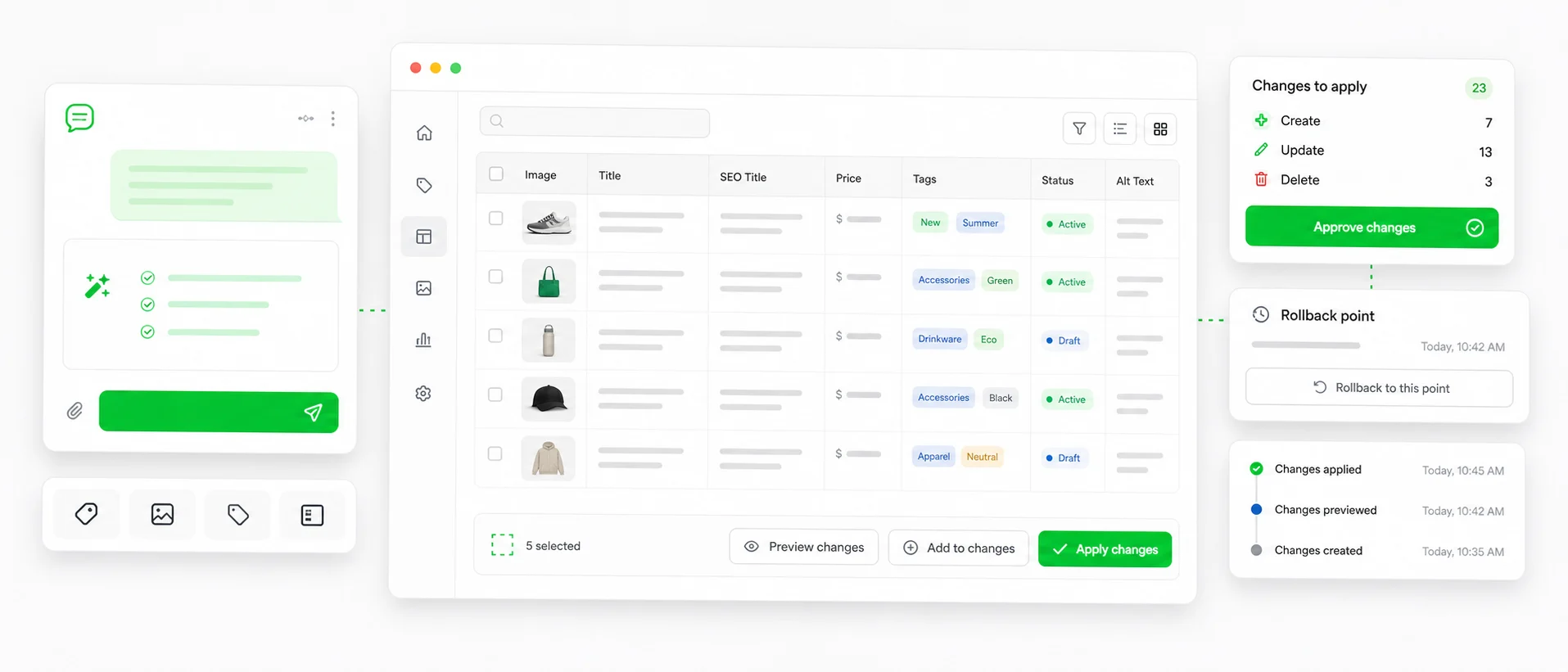
You type the change. "Raise prices by 10 percent only for XL variants, round to .99, skip anything already on sale." The tool reads the variants in scope, builds one row per change, and shows them: current value, new value, the reason the row is in scope, and the count at the top. Nothing is written until you approve. The previous values are saved per row at write time, so the job can be reverted as a job.
It is the shortest path from a sentence to a reviewed change, and it is the only method that writes per-row text: alt text from the image, a meta description from the description, a title rewritten to a pattern with exceptions. It also answers questions before the write. "Which products have no vendor?" is a report with no approval, and the fix is the next sentence.
It is not a spreadsheet. A supplier file with 5,000 rows of new prices and images belongs in CSV, not in chat, and a good chat tool says so. It is not a scheduler either; a sentence that should run every Friday is a sentence you send every Friday, or a task in an app.
- Good for: one-off requests with conditions, questions first, per-row text, a revert from history.
- Cannot: replace a file for a migration; run on a schedule as a lead feature.
- Trap: read the count before the rows. A sentence that matched 1,200 products instead of 40 is caught there or not at all.
The same job, four ways
Six jobs merchants actually run, and what each method makes of them. "No" means the method cannot do it, not that it is slow.
| Job | Admin | CSV | App | Chat |
|---|---|---|---|---|
| Set vendor on 30 selected products | Best: one column, one value | Overkill | Overkill | Fine |
| Raise every price in a collection by 10 percent | Type each price | Formula in the sheet | Filter and percent edit | One sentence |
| Add a tag without removing existing tags | Per row | Replaces; include old tags in the cell | Add action | One sentence |
| Write alt text for images that have none | Per image | Values must come from somewhere | Template only | Per image, previewed |
| Weekend markdown, reversed Monday | Twice by hand | Two imports | Best: scheduled task | Two sentences |
| Load 5,000 supplier prices by SKU | No | Best: the values are the file | Import step in some apps | Small sheets only |
Two rows have a clear best. The rest depend on whether the job repeats and whether the values exist yet.
Which fields each method reaches
Not every method reaches every field. This is the table merchants look for after the first tool they tried did not have the column.
| Field | Admin bulk editor | CSV | Apps | Chat |
|---|---|---|---|---|
| Price, compare-at | Yes | Yes | Yes, with formulas | Yes, with rules |
| Inventory per location | Quantity column, one location at a time | One column per location | Yes | Yes, by location name |
| Tags | Yes, replaces the list | Yes, replaces the list | Add or remove | Add, remove or replace |
| Status, channels | Yes | Published column | Yes | Yes |
| SEO title, meta description | Yes | Yes | Yes, templates | Yes, per row |
| Alt text | No | Image Alt Text column | Templates | Per image |
| Metafields | Some, if pinned | One column per definition | Yes, typed | Yes, typed |
| Options and variant structure | No | Risky round trip | Rarely | Yes, previewed by variant |
| Descriptions | No | HTML blob per row | Find and replace | Whole description, per row |
Options and variant structure are where the CSV round trip does the most damage and the admin does nothing.
Variants, the level most edits get wrong
Most product fields are actually variant fields. Price, compare-at, SKU, barcode, weight, inventory: all per variant. A product with four sizes has four prices. A bulk edit that "sets the price to 49" on a product sets it on every variant, which is usually what you meant for a single-variant product and never what you meant for a sized one.
In the admin bulk editor, variant rows are inside each product and expanded per product. In CSV, each variant is its own row and the product fields repeat on the first row only. In apps, you choose the resource (products or variants) before you build the filter. In chat, you say the level: "every XL variant" versus "every product".
Structural edits (adding a size to every product, removing a "Ships From" option, renaming "Color 3" to "Navy" across products) are a category on their own. The admin does them per product on the options screen. CSV does them badly, because removing an option column collides on re-import. Most apps do not do them. Chat does them with a per-variant preview that states which variants stay and which go, because deleting an option deletes variants.
Before any of them writes
Three questions, whatever the tool. If the tool cannot answer them, do a smaller test first, and read the page on undo before the real job.
- How many rows will change? The number, not "the selected products". If it is bigger than you expected, the filter is wider than you meant.
- What will each row look like after? Current value and new value, side by side. A count is not a preview.
- How do I get back? An export you made, a backup window on the app, or before values saved per row. If the answer is "I remember what they were", export first.
- Is any part one-way? Deleting variants, creating products, clearing images. Know it before approving.
- Ten products first. Run the real rule on ten, check, revert, then run the catalog.
Which one, by where the change starts
The question that decides the method is not which tool is best. It is where the change starts and whether it repeats.
- A screenful of rows you can see, one field, literal values: the admin bulk editor.
- A file that already has the values, a migration, a supplier feed: CSV, and Matrixify past a few thousand rows.
- The same edit on a calendar: an app with saved tasks and a schedule.
- A sentence from a person, with conditions, or a question first, or per-row text: chat.
- Two of the above: most stores. File for the feed, sentence for the requests, admin for the quick fix.
Terms used on this page
- Bulk editor: the table view in the Shopify admin. Saves on click; no formulas, no undo.
- Variant: one combination of option values. Price, SKU, barcode, weight and inventory live here, not on the product.
- Level: whether a rule applies per product, per variant or per variant per location.
- Task: in a bulk-edit app, a saved filter plus action. Can be scheduled.
- Preview: the rows as they will be after the write, with current and new values. A count is not a preview.
- Before value: the value of a field immediately before a write. Needed for a revert.
- Structural edit: a change to options or variants rather than to a field value. The class of edit CSV handles worst.
Questions
Can the Shopify bulk editor change prices by a percentage?+
No. It takes literal values per cell. Percent rules need a spreadsheet formula, an app, or a chat instruction.
Do CSV imports replace tags?+
Yes. The Tags column is the full list. To add a tag, include the existing tags in the cell, or use an app or chat tool with an "add tag" action.
Which method has undo?+
The admin: none. CSV: your pre-edit export. Apps: a backup window of 30 to 180 days by plan. Chat with saved before values: revert per job from history.
How do I bulk edit variants, not products?+
In the admin, expand each product's variants in the bulk editor. In CSV, each variant is a row. In an app, choose Variants as the resource. In chat, say the level: "every XL variant".
Can I bulk edit metafields without CSV?+
Pinned metafields appear as columns in the admin bulk editor. Apps and chat tools edit metafields with type awareness. Unpinned metafields on many products need one of those or a CSV.
Can I remove a variant option in bulk?+
Not in the admin bulk editor, and not safely by CSV. A chat tool previews the delete by variant and refuses to leave a product with none. Most apps do not do structural edits.
How many products can each method handle?+
The admin pages at fifty and gets slow past a few hundred. CSV handles any size. Apps cap per task by tier on lower plans. Chat tools show an estimate for the job instead of a cap.
What should I test first?+
A tag on ten products, then undo. It exercises targeting, preview, write and revert, and is harmless if it goes wrong.
Related
- Shopify bulk editor vs CSV vs APIA routing table for which layer fits which job.
- How to undo a bulk edit in ShopifyWhat each method gives you after a bad write.
- Bulk update prices and inventory in Shopify, with undoThe chat path, row by row.
- Best Shopify bulk product editorFive tools compared on preview, undo and pricing.
Run this on your own catalog
Install from the Shopify App Store. Every write shows its rows before it runs, and applied jobs can be reverted from history.