
2026-05-24
How to bulk update Shopify prices and undo them later
Bulk update Shopify prices safely by planning the target set, choosing the right price-change shape, reviewing every affected variant, and keeping a revert path before the campaign starts. The hard part is usually targeting and cleanup, not the arithmetic.
The short answer
For a small price change, the Shopify admin can be enough. For a file-led update, use CSV or Matrixify. For recurring scheduled markdowns, use a task tool. For a one-off campaign request that needs review and supported rollback, use ApiMate.
| Price job | Best layer | Risk to check |
|---|---|---|
| Small manual price fix | Shopify native admin | Wrong row selection. |
| Supplier price file | CSV or Matrixify | Column mapping and original value backup. |
| Recurring markdown schedule | Ablestar, Hextom, or QuickEdit | Task rules and end-date logic. |
| Ad-hoc campaign request | ApiMate | Target set, before/after review, and supported rollback. |
| Cost-plus-margin recalculation | Spreadsheet, API, or custom job | Formula accuracy and rounding. |
Price changes deserve a rollback plan before the first write runs.
Plan the target set before touching prices
Most price-update errors come from targeting mistakes, not math. Before changing a price, decide exactly which slice of the catalog the change should hit. The right scope depends on the campaign shape: collection-wide markdowns, vendor-specific increases, market-level adjustments, or a tag group set up for the sale.
Write the scope down before opening the editor. A merchant who knows the scope can usually catch a targeting mistake when the proposed write lists the wrong number of variants. A merchant who is still figuring out the scope while looking at the preview is more likely to approve a wrong list because the number looks roughly right.
Review before apply
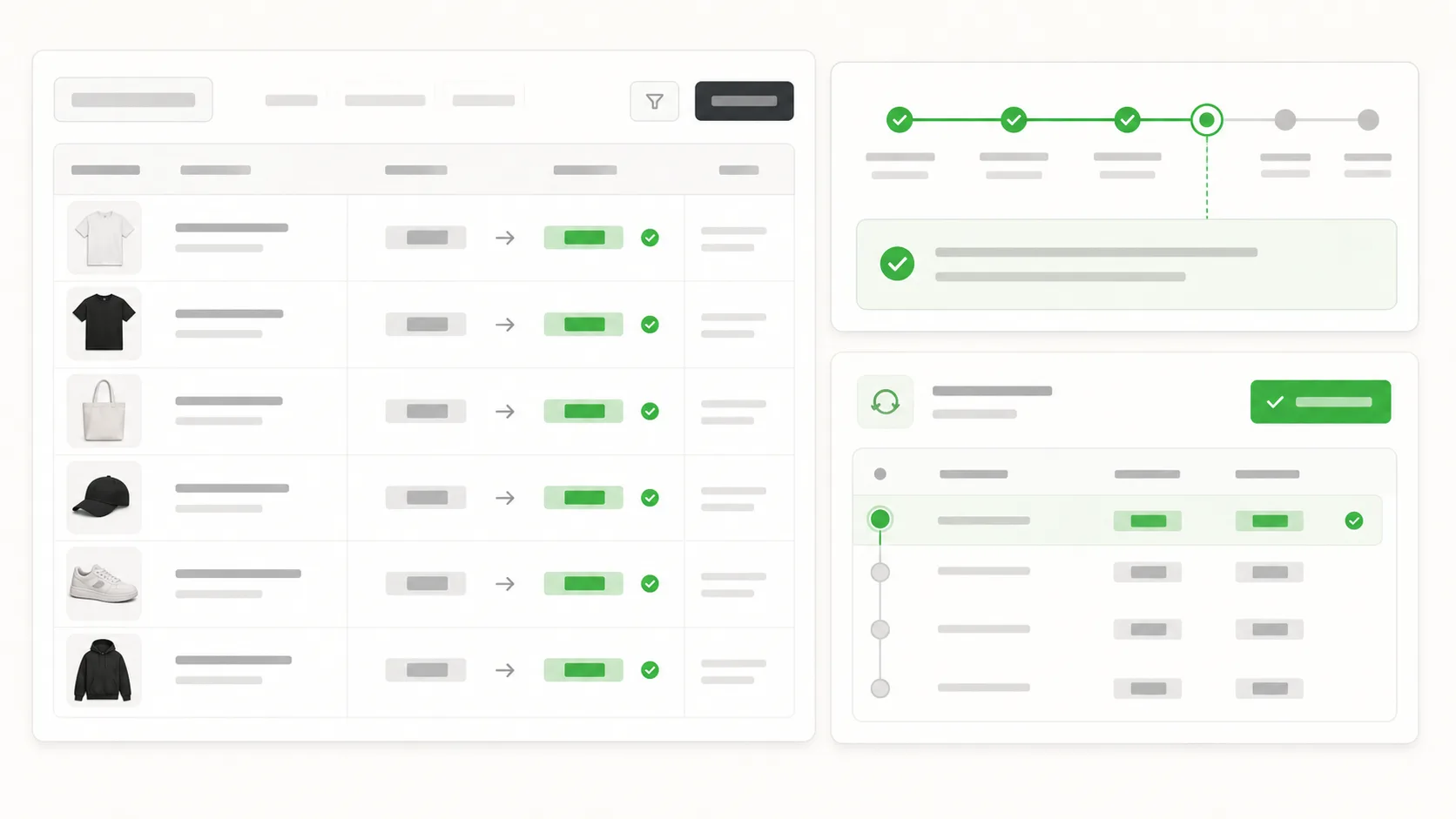
The review screen should show product, variant, current price, new price, compare-at price where relevant, and the reason the row is in scope.
Pick the change shape that matches the campaign
There are four common shapes for a price campaign, and each one calls for a different write.
| Change shape | Use when | Review check |
|---|---|---|
| Percent change | A campaign applies the same discount or increase to a scoped set. | Confirm rounding and variant count. |
| Fixed delta | Every target price moves up or down by the same amount. | Check low-price products for margin damage. |
| Compare-at update | The storefront should show a sale display. | Make sure compare-at price is higher than price where the theme expects it. |
| Cost-plus-margin | Supplier cost or margin is the input. | Use a spreadsheet, PIM, or API job when formulas matter. |
| Revert | The campaign is temporary or a mistake was approved. | Restore the prior values captured before the write. |
Make rollback part of the plan, not a recovery step
If a campaign is temporary, rollback is part of the campaign plan. The team should know how the prices will return before the discounted prices go live.
For permanent changes, rollback still matters because mistakes happen. Even a margin-driven price increase that is meant to stay can need a partial revert if the supplier cost was wrong.
Do not rely on memory
If automatic scheduling is enabled in the tool, set the revert when the campaign is approved. If it is not, keep the prepared revert in the same workflow and confirm who owns it.
Use review before apply, every time
The best protection against a wrong price write is not speed. It is being able to confirm the proposed write before prices change on the storefront.
The review screen should list the exact variants in scope, the current price, the new price, compare-at price where relevant, and the per-line delta. If any of these do not match the intent, the operator declines and refines the instruction.
What tools to use for which shape
For a flash sale on a small known product set, the native Shopify admin bulk editor is fast enough; the install cost of any external tool is higher than the saving. For a recurring scheduled markdown on a known calendar, Ablestar or QuickEdit can be the better fit because they were built around tasks and schedules.
For a campaign that starts as a request, such as "drop prices 15% for vendor Acme until Friday", ApiMate is the better fit when the merchant wants the instruction to become a reviewed write. The proposed write lists the exact variants and the new prices, and approval is explicit.
For a full cost-plus-margin recalculation from a supplier feed, Matrixify, a spreadsheet, or a custom API job is the right layer. The change starts as a file or formula, not as a merchant instruction.
What undo can and cannot restore
Undo should restore stored prior values for supported fields. For price campaigns, that means the price and compare-at price values captured at write time.
Undo is not a full backup system. It cannot reverse every downstream effect of a price change, such as orders already placed at the campaign price or third-party systems that copied the price before the revert.
| Case | Rollback expectation |
|---|---|
| Price field changed | Restore the prior price captured before the write. |
| Compare-at price changed | Restore the prior compare-at value captured before the write. |
| Wrong products targeted | Revert supported fields, then rerun the corrected target set. |
| Orders placed during campaign | Do not expect price rollback to change completed orders. |
| External sync copied the value | Check the external system separately. |
Rounding and compare-at price rules
The arithmetic is easy to describe and easy to get slightly wrong. Percent discounts create rounding choices. Compare-at prices create theme and storefront rules. The tool should make those choices visible before apply.
For many stores, a 15% sale is not exactly 15% after rounding because prices need to end in .00, .95, or .99. That is fine if the team expects it. It is a problem if the operator approves a campaign without seeing the final customer-facing price.
| Price detail | Decision to make | Why it matters |
|---|---|---|
| Rounding rule | Round to nearest cent, .00, .95, or .99. | Small rounding differences can add up across a large catalog. |
| Compare-at price | Set it, leave it, or restore a previous value. | Themes often show sale badges only when compare-at price is higher than price. |
| Minimum margin | Exclude rows that fall below margin. | Low-price items can become unprofitable after a percent discount. |
| Markets and currencies | Check whether the change touches only base catalog prices. | International pricing rules can change how a campaign appears. |
| Scheduled revert | Set the return value and owner before launch. | Campaign cleanup should not depend on memory. |
Preflight checklist before approval
A price write should not be approved from a summary alone. The operator needs enough detail to catch the common mistakes before customers see them.
The checklist is short, but it forces the right review. If the tool cannot show these items, run a small test set first.
Approval is not just a button
Approval should mean the merchant saw the exact rows and values, not just that the instruction sounded right.
- Target set: product count, variant count, vendor, collection, tag, or saved filter.
- Before values: current price and compare-at price for sampled rows.
- After values: final storefront price after rounding.
- Exclusions: gift cards, low-margin SKUs, bundles, preorder items, or items already on sale.
- Rollback: prior values captured and a clear owner for the revert.
- Timing: when the campaign starts, when it ends, and who checks the storefront.
After the campaign ends
The cleanup step deserves the same review as the launch step. Reverting prices changes the storefront again, so the operator should confirm the target set and the restored values before the revert runs.
After the revert, spot-check the collection page, one product page, and any merchandising rules that depend on price or compare-at price. If an external feed or ad platform copied the sale price, check that system separately.
| After-action check | What to verify |
|---|---|
| Catalog values | Price and compare-at price returned to expected values. |
| Sale badges | Badges, filters, and collection rules no longer show stale sale state. |
| Excluded rows | Products excluded from launch were not touched by the revert. |
| Orders | Completed orders remain unchanged and are not treated as rollback targets. |
| External systems | Ads, feeds, ERP, or PIM records did not keep stale campaign prices. |
A worked example
A merchant runs a spring sale that drops prices 15% for vendor Acme between Friday evening and Sunday night. The job touches 42 products and 96 variants. The risky way is to run a one-off CSV import, forget the revert plan, and spend Monday morning rebuilding the original prices.
A safer workflow names the target set, reviews the proposed write, stores the prior values, and keeps the revert path in the same operating record. If a targeting mistake is caught, the merchant reverts the supported fields and reruns the corrected scope.
Frequently asked questions
Can I schedule a price revert to run automatically?+
Use automatic scheduling only when the tool and plan you are using clearly support it. If scheduling is not available, keep the prepared revert in the same workflow and assign an owner before the campaign starts.
What happens if the proposed write targets the wrong vendor?+
The merchant should decline the proposed write and refine the scope. Nothing should apply until the target set and new prices match the intent.
How is undo different from a Shopify export-then-reimport?+
Export-then-reimport works when the export is correct and easy to find. A first-class undo flow stores prior values at write time and writes them back without preparing a reverse file.
Does undo work for compare-at price?+
It should for supported writes where the prior compare-at value was captured before apply. Verify the supported field list in the product before relying on rollback for a campaign.
Can rollback change orders already placed during the sale?+
No. Rolling back product price fields should not be treated as a way to change completed orders. It returns catalog values for future storefront behavior.
How should I handle rounding on percent discounts?+
Pick the rounding rule before approving the write. Many stores round to .00, .95, or .99. The review should show the final price after rounding, not just the discount percentage.
Should compare-at price always be changed during a sale?+
No. It depends on the storefront behavior you want and how your theme displays sale badges. If you change compare-at price, capture the prior value so the revert can restore it.
What should I check after a price revert?+
Check catalog values, sale badges, collection rules, and one or two product pages. Also check external systems that may have copied the campaign price before the revert.
Related pages
Bulk update prices
The product page for merchants ready to choose a tool.
Bulk edits with undo
Why rollback belongs inside the workflow rather than in a separate backup tool.
Bulk editor vs CSV vs API
Choose the right layer before changing prices at scale.
Best Shopify bulk product editor
Five Shopify editors compared on pricing, undo, and workflow shape.
ApiMate vs Matrixify
When file-led imports are still the better layer.
Try ApiMate on a real Shopify catalog
Install from the Shopify App Store. Every write is reviewed before it runs, and any change can be rolled back from the command history.