
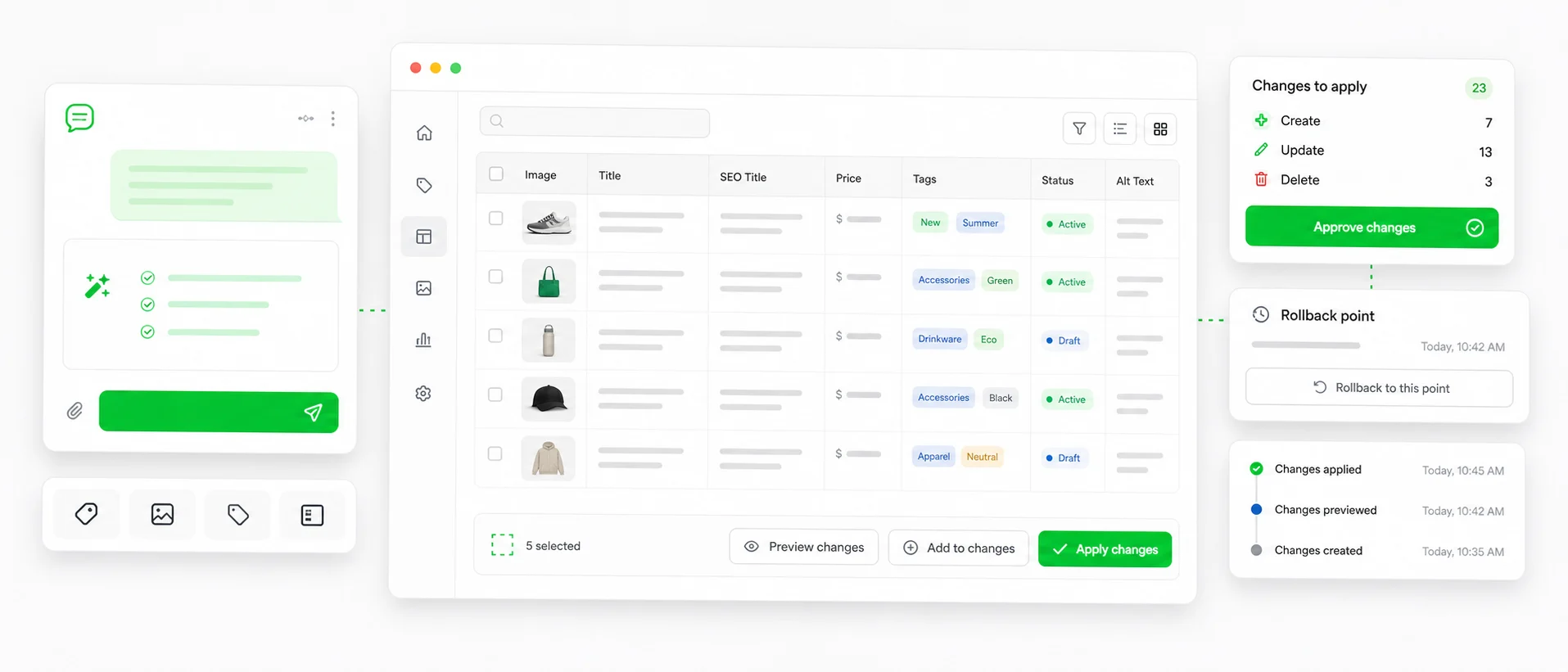
You can fill every missing SEO title, meta description and image alt text in a Shopify store with one instruction, one preview and one approval. ApiMate reads the products in scope, writes one value per row from the data each product already has, lists the rows with the current value next to the new one, and writes nothing until you approve. The values that were there before are saved with the job, so the whole thing can be reverted from history.
The native admin does this one product at a time, behind a collapsed "Search engine listing" panel. A spreadsheet tool does it from a column you fill yourself. Neither writes the text. That is the gap this job closes: the text is generated from the product title, type, vendor, tags and description, one row at a time, and shown to you before it exists in the store.
What it will not do: invent facts that are not in the product data, change handles (that is a URL change with redirects attached), or rewrite titles wholesale. Those are separate jobs with their own previews, and the section on limits says why.
Who runs this job, and why now
Three situations bring merchants to this page. The first is a store that grew faster than its listings: products were added from a supplier feed or a dropshipping app, the admin filled in the title and price, and the search engine listing fields stayed empty because nobody scrolled down. Google fills the gap by picking a sentence from the description, and the sentence it picks is rarely the one you would have chosen.
The second is a redesign or a migration. The theme changed, the collections were rebuilt, the product types were renamed, and the SEO titles still say what the old site said. The listings are not empty; they are wrong, which is worse, because the empty ones at least fall back to the product title.
The third is an audit. Someone ran a crawler, or Search Console flagged duplicate titles, or the Merchant Center review found thin descriptions. The report lists a few hundred products. Each one needs a sentence written, and the sentence has to be about that product. This is the job where "bulk" and "per product" have to be true at the same time.
How this is done without ApiMate, and where each way breaks
In the Shopify admin, an SEO title and meta description are edited per product. Open the product, scroll to "Search engine listing", click "Edit", fill two fields, save. Alt text is one level deeper: open the product media, click the image, edit the alt text. There is no column for any of these in the admin bulk editor. For twenty products this is a coffee break. For four hundred it is a week nobody has.
A CSV export and import handles the volume. Export the products, fill "SEO Title" and "SEO Description" in the sheet, import. The sheet does not write the text; you do, or you build a formula that concatenates the product title and the vendor and hope the result reads like a sentence. The import has no preview and the admin has no undo. If the column shifts by one, the import runs anyway.
Table-style bulk editor apps put the SEO fields in a grid with a filter. That fixes the scale problem and adds a preview. It still leaves you typing the value, or applying a template like "{title} | {vendor}" to every row. Templates produce identical structures across the catalog, which is what Google's duplicate-title report is about. The missing piece in every one of these is a value written for each product from that product's own data.
Audit first: how many products are missing what
Start with a question, not a change. Reads need no approval, and the answer gives you the number you will compare the preview against later. If the audit says 312 products have no meta description and the plan later says it will update 1,046, the scope moved and you decline.
The answer comes back as counts and a table: how many active products have no meta description, how many have no SEO title, how many images have no alt text, and the first twenty of each with product type and vendor so you can see what kind of products they are. Draft and archived products are excluded unless you ask for them; a listing nobody can see does not need a search snippet.
Instruction
How many active products have no meta description? List the first 20 with product type and vendor.
- Ask for the count per field: SEO title, meta description, alt text are three different gaps with three different sizes.
- Ask for the breakdown by product type or vendor. A gap concentrated in one vendor is usually an import; the fix can be scoped to that vendor.
- Keep the numbers. They are the acceptance test for the preview.
The instruction, as written
The instruction names the field, the scope and the rules. The rules matter more than the wording. Google shows about 60 characters of a title and about 155 of a description before truncating; Shopify stores up to 70 and 320. Say the limit. Say what must be in the text and what must not.
Scope is read literally. "Every active product that has none" leaves existing values alone and skips drafts. "Every product" would include the ones written by hand months ago. The difference between the two is the difference between filling gaps and overwriting work, and the preview will show you which one you asked for, but it is cheaper to ask for the right one.
Instruction
Write a meta description for every active product that has none. Under 155 characters, name the product type and the brand, no exclamation marks, no "free shipping".
- Field: meta description. One field per instruction keeps the preview readable.
- Scope: active products with an empty meta description.
- Length: under 155 characters. The generator counts; the preview shows the count.
- Content: product type and brand, because those are the two facts every row has.
- Exclusions: no promotional phrases, no exclamation marks. Merchant Center reads these fields too.
What the preview showed
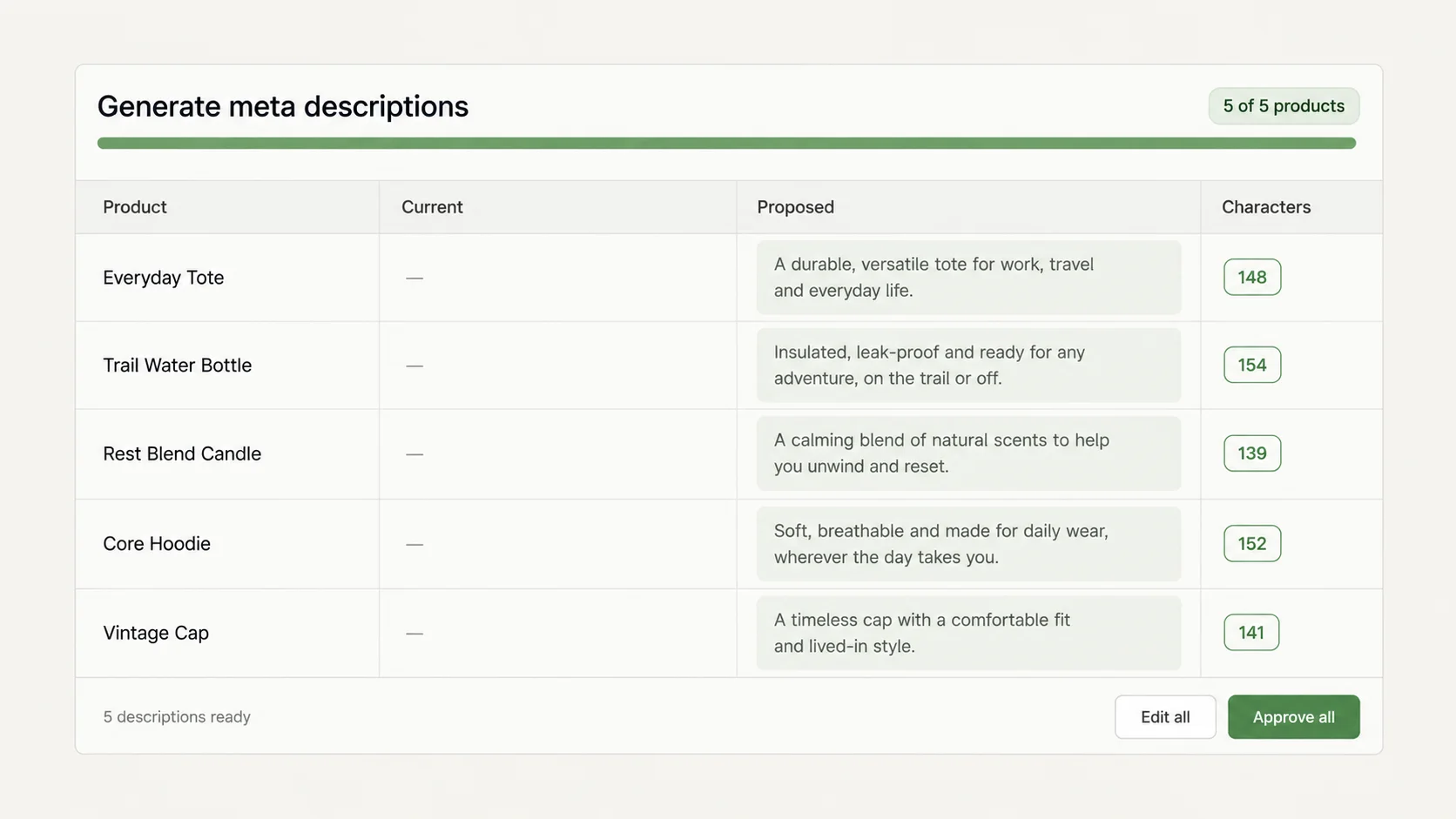
ApiMate reads every product in scope first and states the count. Then it writes one value per row from the product title, type, vendor, tags and the existing description, and lists the rows. The list is the plan. It is not a sample: every row that will be written is in it, and a row that is not in it will not be written.
Two rows from a run, to show the shape: "Harbor Glove 1235 in Waxed Canvas | Kestrel Supply" and "Vantage Tent 1310 in Recycled Polyester | Basalt Works". Product name, material, vendor. Nothing that is not in the product data. A product whose description is empty and whose tags say nothing gets a shorter, plainer line, because there is nothing to say and the generator does not make things up.
| Column | What it is | What to check |
|---|---|---|
| Product | Title and handle | Is this the product you meant, in the scope you meant |
| Field | SEO title, meta description or image alt text | One field per job; a mixed list means the instruction was read as two jobs |
| Current | The value in the store right now, read live | Empty for a "has none" scope. A filled value here means the scope is wrong |
| New | The generated value | Length, facts, tone. Read it as a customer would |
| Characters | Length of the new value | Under the limit you set |
| Skipped | Products that matched the scope but not the rule | The reason column says why; usually "already has a value" |
One row per product per field. The count at the top of the preview is the number of rows that will be written.
Meta descriptions
The meta description is the two lines under the blue link in a search result. Google rewrites it when it thinks it can do better, which is often when the stored one is empty or generic. A specific one, naming the product, its material and its brand, is the one Google keeps.
The generator works from what the product has. Title and vendor are always there. Product type is usually there. Tags and the description body are the source for the specific detail: the material, the size range, the use. When the description body is a supplier paragraph about shipping, the generated line will be plain, and that is the right outcome; the fix is the description, not the snippet.
The rule "no exclamation marks, no free shipping" is not taste. Merchant Center reads the same fields and flags promotional text in them. A meta description that says "Buy now!!!" is a snippet Google may ignore and a feed row Google may reject.
SEO titles
The SEO title is the blue link itself and the browser tab. When it is empty Shopify falls back to the product title, which is fine for a product called "Merino Wool Beanie, Charcoal" and bad for one called "MWB-CH-01". The job is to fill the empty ones with something a person would click, under 60 characters, without producing four hundred titles that all end in " | Your Store".
The instruction for titles needs one extra rule: what goes at the end. "Product name, then the brand" is one pattern. "Product name, then the material" is another. Say it, or the generator picks, and it is easier to check a preview against a rule you wrote than against one you did not.
Titles that exist but run over 60 characters are a second scope: "rewrite the SEO titles longer than 60 characters, keep the product name first". The current column shows the long one, the new column the short one, and you decide per row whether the cut kept the right words.
Instruction
Write an SEO title for every active product that has none. Under 60 characters, product name first, then the material if the tags say it, then the vendor.
Alt text on existing images
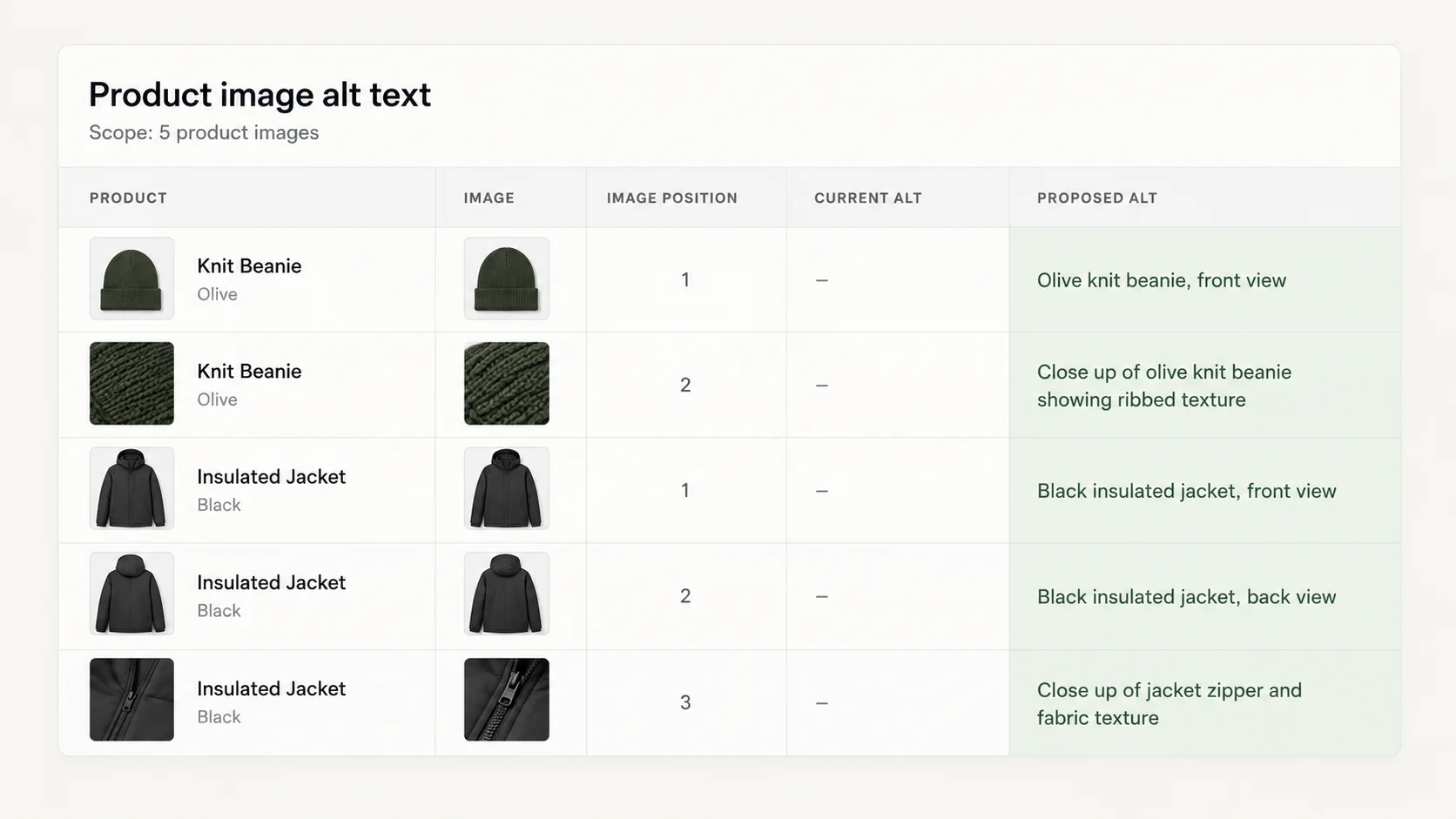
The same flow works for image alt text, with one difference: the write goes to the image, not the product. ApiMate reads the product and its media first, then builds one row per image. A product with four images is four rows. The count in the scope line is the number of images, and that is the number to compare with the audit.
Alt text describes what is in the picture for someone who cannot see it, and for the image search index. "Charcoal merino wool beanie on a white background" is alt text. "Buy the best beanie" is not. Keep it under 125 characters, because screen readers cut off around there, and do not repeat the product title on every image of the same product; say what is different about this picture.
The generator does not look at the picture. It writes from the product title, type, options and the image position: first image is the product, later ones are likely details or alternate colours. If your images are unusual, the rows for a product will be similar to each other. That is a known limit, and the preview is where you catch it.
Instruction
Write alt text for every product image that has none. Describe what is in the picture, under 125 characters, no marketing words.
Before you approve
The preview is the whole job. Read it like a proofreader, not like a dashboard. Five minutes here is the difference between a catalog that reads well and a catalog you revert on Monday.
- The row count matches the audit count. If the audit said 312 and the plan says 1,046, the scope moved.
- Open five rows at random and read them aloud. A description that names the wrong material is the one you exclude.
- Sort by length, if the preview allows it, and read the longest and shortest. The edges are where the rule bent.
- Products with a single Default Title variant: the generated text should not mention sizes or colours it does not have.
- A row that looks wrong is excluded from the plan, not fixed by hand. Approve the rest, then run a narrower job for the exclusions.
What happened after approval
One approval writes every row. Shopify processes the writes in batches; a few hundred rows finish in under a minute, a few thousand take longer, and the job reports progress and the final count. When it finishes, the job appears in history with the rows it wrote and the values they replaced.
To see the result in Shopify, open any product from the list and scroll to "Search engine listing". The new values are there, and the preview panel Shopify draws under them shows the snippet as Google would render it. For alt text, open the product media and hover the image. Google will pick up the new snippets on its next crawl, which is days for a busy store and weeks for a quiet one; Search Console shows when.
Revert
Every write stores the value that was there before. Reverting a job builds a new job from those saved values and writes them back, through the same preview and approval, to exactly the rows the first job touched. For fields that were empty, revert makes them empty again.
What revert cannot do: restore a value that was changed by something else after the job ran. If you approved the job on Monday, edited three products by hand on Tuesday, and revert on Wednesday, the three hand edits are overwritten with Monday's saved values. Revert puts back what this job overwrote, not what the product looked like at any other time. The preview for the revert job shows every row, so the three are visible before you approve it.
Where the tool stops
Handles are not touched. A handle is the product URL; changing it breaks every inbound link until a redirect is in place. That is a different job with a different risk, and it is not bundled into an SEO field job.
Titles are not rewritten wholesale. The product title is the page H1, the name in the cart and the line on the order confirmation. Change titles one rule at a time ("append the material") with a preview, or not at all. An instruction that reads as "rewrite all titles" comes back as a question, not a plan.
Text comes from the product data. If the description is empty and the tags say nothing, the generated field is short and generic. The tool does not look up the product on the internet to fill the gap, and it does not copy text from another product. A thin catalog produces thin snippets; the fix is the descriptions, and that is its own case.
Alt text is written without seeing the image. For a catalog where the image order is consistent, the result is good. For one where it is not, expect to exclude rows.
Other ways to say the same job
There is no syntax. These phrasings all resolve to a plan of the same shape; the scope line at the top of the preview tells you whether they resolved to the scope you meant.
- "Fill in the missing meta descriptions."
- "Every product in the Outdoor collection with no SEO title: write one under 60 characters."
- "Meta descriptions for the Kestrel Supply products that don't have any, mention the material."
- "Alt text for all images that have none."
- "Which products have SEO titles over 60 characters? Then shorten them, keep the product name first."
- "Rewrite the meta descriptions that say 'free shipping', keep everything else."
- "Generate SEO titles and meta descriptions for products missing SEO fields, for all products in the store."
Terms used on this page
- SEO title (page title): the text in the browser tab and the blue link in a search result. Stored per product; Shopify falls back to the product title when empty.
- Meta description: the two-line summary under the search result link. Google may rewrite it; a specific one is more likely to be kept.
- Alt text: the description of an image for screen readers and image search. Stored on the image, not the product.
- Handle: the last part of the product URL. Not an SEO field in this job.
- Scope: the set of products or images a job applies to. Resolved before the plan is built; the count is in the first line of the preview.
- Preview: the list of rows a job will write, with the current and new value. Nothing is written until it is approved.
- Revert: a new job that writes the saved previous values back to the rows the original job changed.
Questions
How many products are you applying this change to?+
The preview says so in its first line, for example "Write 312 meta descriptions on 312 products". That number is the number. If it is not what you expected, decline and narrow the instruction.
Will it overwrite SEO fields I wrote by hand?+
Not if the instruction says "that has none". The scope is read literally: products with an existing value are not in the plan, and they appear in the skipped list with the reason.
Where does the text come from?+
From the product: title, type, vendor, tags and the description body. Not from the internet and not from other products. A product with thin data gets a plain snippet.
Can it fix duplicate SEO titles?+
Yes, as a scoped job: "products whose SEO title matches another product's". The preview shows each duplicate with its proposed replacement. The rule for the replacement is yours; "add the colour" is a common one.
Does it write alt text from the image itself?+
No. Alt text is written from the product data and the image position. For catalogs with consistent image order that works; for others, read the rows and exclude the ones that do not fit.
Can I undo it a week later?+
Yes. The job stays in history with the saved previous values. Revert is a new job built from those values and goes through the same approval. Edits made by hand after the job are overwritten by revert; the revert preview shows them.
Does it change product handles or URLs?+
No. Handles are never part of an SEO field job.
How long before Google shows the new snippets?+
Days to weeks, depending on how often Google crawls the store. Search Console shows the last crawl per URL. The change in Shopify is immediate.
What does it cost?+
Reads are close to free. Generation is charged per field written, and the estimate is shown before the model writes anything. The free plan covers the audit and a small job; the pricing page has the plans.
Related
- Audit a Shopify catalog before a Google Merchant Center reviewPromotional text in titles and thin descriptions are two of the checks.
- Clean up AliExpress and DSers imports in ShopifyFix the descriptions first; the snippets are written from them.
- How to undo a bulk edit in ShopifyWhat revert restores and what it cannot.
Run this on your own catalog
Install from the Shopify App Store. Every write shows its rows before it runs, and applied jobs can be reverted from history.