
Price and stock changes in Shopify are variant-level writes. Both go through the same three steps in ApiMate: an instruction that names the scope and the rule, a preview that lists every variant with its current and new value, and one approval. The values that were there before are saved with the job, so a sale can be ended and a mistake can be undone by reverting from history.
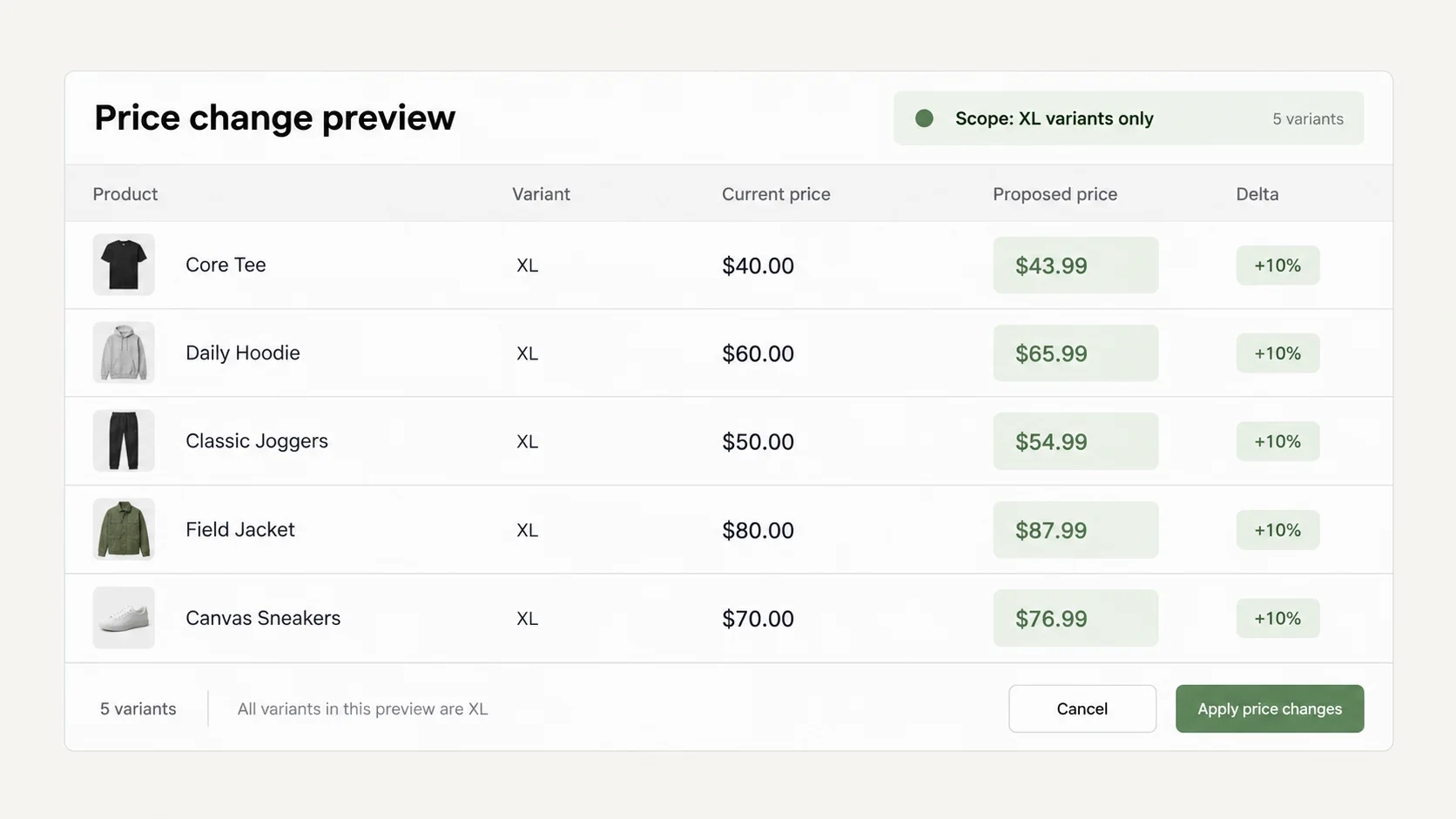
Three instructions that show the range: "Raise prices by 10% only for XL variants", "Set price 49.99 and compare-at price 69.99 for all Hydration products", and "Set stock to 20 at both locations for all snowboards". Each produced one plan, one approval and one verified result, and none of them touched a variant outside its scope. The scope is read literally, and the first line of the preview states how many variants matched.
Most price mistakes are targeting mistakes, not arithmetic. The rule was right and the collection was wrong, or "XL" matched "XXL" too. The preview exists so the wrong scope is caught before it goes live, and revert exists so the cleanup takes minutes when it is not.
Who runs this job, and why now
A supplier sends a new cost list and every product from that vendor moves 6%. A sale starts Friday and ends Sunday night, and it needs the price and the compare-at price set together on two hundred variants, then both put back. A line is being cleared and everything tagged with it drops 30%. Stock arrives at one warehouse and not the other, and the counts have to land at the right location or the storefront sells what is not there.
Each of these is a few sentences in a chat and a few hundred rows in the admin. The merchant knows the rule. The work is applying it to every variant it applies to, and only those, and being able to show afterwards what changed.
Two questions merchants ask during their first price job, word for word: "How many products are you applying this change to?" and "Is this change for all of my items?" The preview answers both in its first line, and the rest of this page is about reading that line before approving.
How this is done without ApiMate, and where each way breaks
The Shopify admin has a bulk editor: select products, "Bulk edit", and a grid with price, compare-at price and quantity columns appears. It works well for a few dozen rows that fit on one screen. It has no formula, so "raise by 10%" is arithmetic you do per cell. It has no filter by tag or vendor beyond the product list search, so "only XL variants" is a manual selection. It has no undo. It writes as you type, cell by cell, and a wrong cell is live the moment you leave it.
A CSV export handles volume and formulas. Export products, change "Variant Price", "Variant Compare At Price" and "Variant Inventory Qty" in the sheet, import. The import has no preview, and a locale that reads 12,50 as 1250 will import 1250. The export you started from is your only way back, and only if you did not overwrite it. Inventory by CSV is per location only through a separate inventory export, which is where the location column gets mixed up.
Table-style bulk editor apps add the formula and the filter, and most add a preview, which is the right shape. The remaining problem is the filter itself: it is built by hand from dropdowns, field by field, and the filter is the thing merchants get wrong. A sentence that says "XL variants of hoodies from Cedar & Pine that are active" is one line to type and four conditions to click. The preview shows rows either way; the difference is how often the rows are the ones you meant.
The instruction, as written
The instruction has three parts: which variants, what changes, by how much. Percent or fixed amount, up or down. Scope by vendor, collection, tag, product type, variant option, status or a price range, in any combination. "Only XL variants" is a scope. "Products under 20" is a scope. "Everything except the Sale collection" is a scope.
Rounding is a rule, not an afterthought. "Raise by 10%" on 24.00 gives 26.40; on 189.00 it gives 207.90. If your prices end in .99 or .00, say so, and the preview will show the rounded value. Say which way to round when it matters: "round up to .99" and "round to the nearest .99" give different results on 26.40.
Instruction
Raise prices by 10% only for XL variants, round to .99.
- Scope: variants whose size option is XL. Not XXL, not products that merely have an XL variant; the XL rows.
- Rule: price × 1.10, then rounded to the nearest .99.
- Products with a single Default Title variant are still variants. They are in scope unless the instruction excludes them.
- A price of 0 is written as 0. An empty value clears a field; it is not a broadcast.
What the preview showed
ApiMate reads the variants in scope, computes the new price for each one and lists them. The list is the plan. The count in the first line is the number of variant rows the job will write. If it says 1,200 and you pictured 40, decline and narrow the scope. Nothing has been written yet.
The current value is read live from the store when the plan is built, not from a cached copy. If a colleague changed a price a minute ago, the left column shows the new one and the rule is applied to it. That also means a plan is not something to leave open overnight; build it when you are ready to read it.
| Column | What it is | What to check |
|---|---|---|
| Product / variant | Title, option values, SKU | The option values are the ones the scope named |
| Field | Price, compare-at price or quantity | One field per row; a price job and a compare-at job on the same variant are two rows |
| Current | The value in the store right now | Matches what you see in the admin |
| New | The computed value | The math matches the rule, including rounding |
| Location | For quantity rows only | The location you meant, and only that one |
| Skipped | Variants that matched the scope but not the rule | Usually "already at target value" or "location read-only" |
The scope line above the table is the count. Read it first.
Prices
A percent rule is the common case and the one where the edges bite. Ten percent on the cheapest variant in the list is pennies; on the most expensive it may cross a threshold the storefront filters on, or a price point marketing promised. Read the top and bottom of the list, not just the middle.
A fixed amount ("add 2.00 to everything from this vendor") is safer at the edges and stranger in the middle: a 2.00 increase on a 4.99 item is 40%. The preview shows the number, not the percentage, so do the division on a few rows.
A set value ("set price to 49.99") is the simplest rule and the one where scope matters most, because every row in scope becomes the same price. If the scope accidentally includes the premium line, the premium line is now 49.99. The count and a scan of the product column catch that before approval.
Compare-at price
A sale on the storefront needs two numbers: the price the customer pays and the compare-at price it is struck through against. Setting one without the other shows no discount, or a wrong one, or a compare-at lower than the price, which themes render as a negative saving and Merchant Center flags as a price mismatch. Say both in the instruction and they land in the same plan.
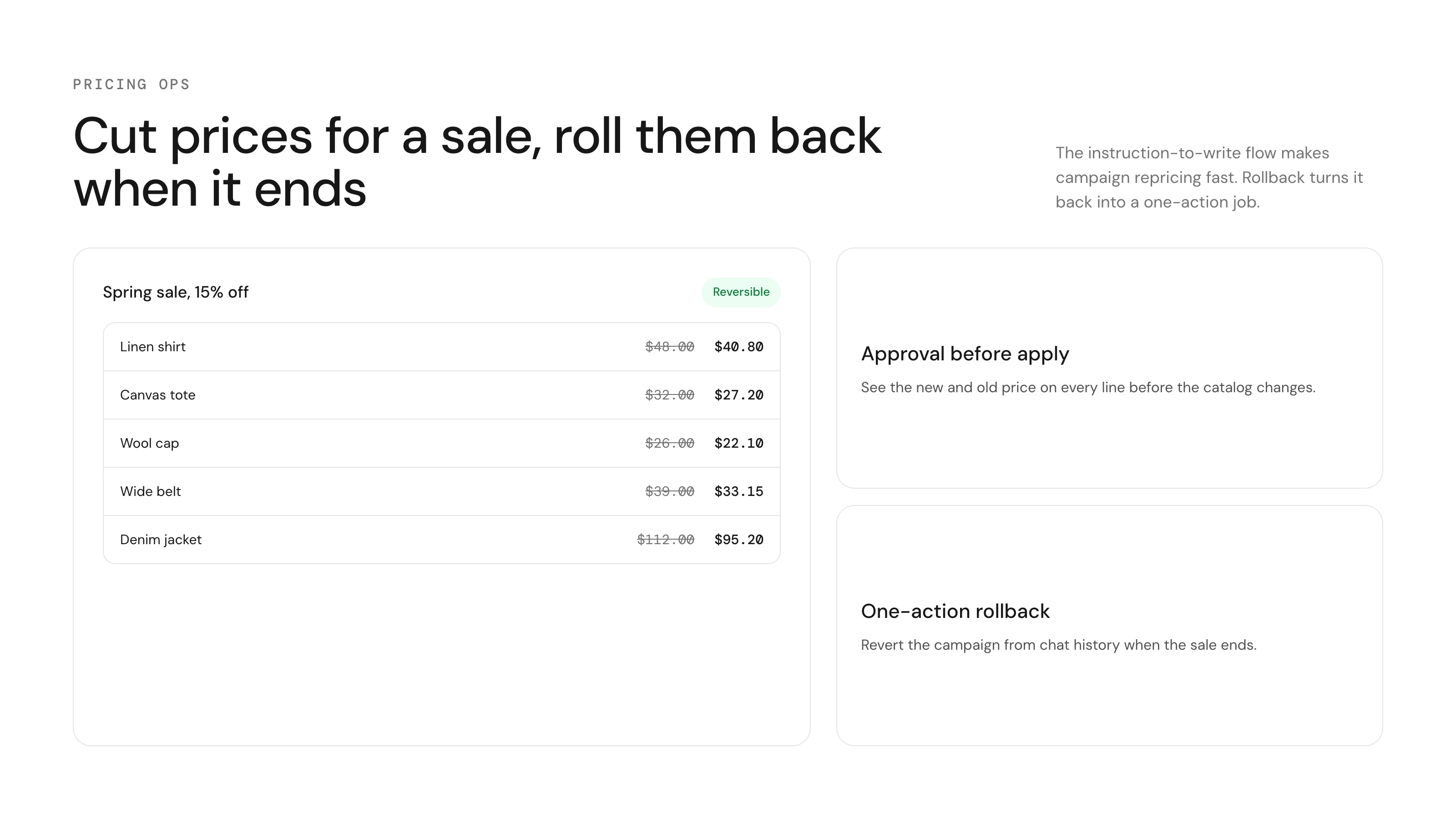
When the sale ends, revert the job. The saved values put both fields back to what they were before, for exactly the variants the job changed. That is the whole "end the sale" procedure: open history, find the job, revert, approve the revert preview. A variant that was not in the sale is not in the revert.
A compare-at price that was empty before the sale is restored to empty. That matters: some themes hide the strike-through only when the field is empty, not when it equals the price.
Instruction
Set price 49.99 and compare-at price 69.99 for all Hydration products.
Inventory
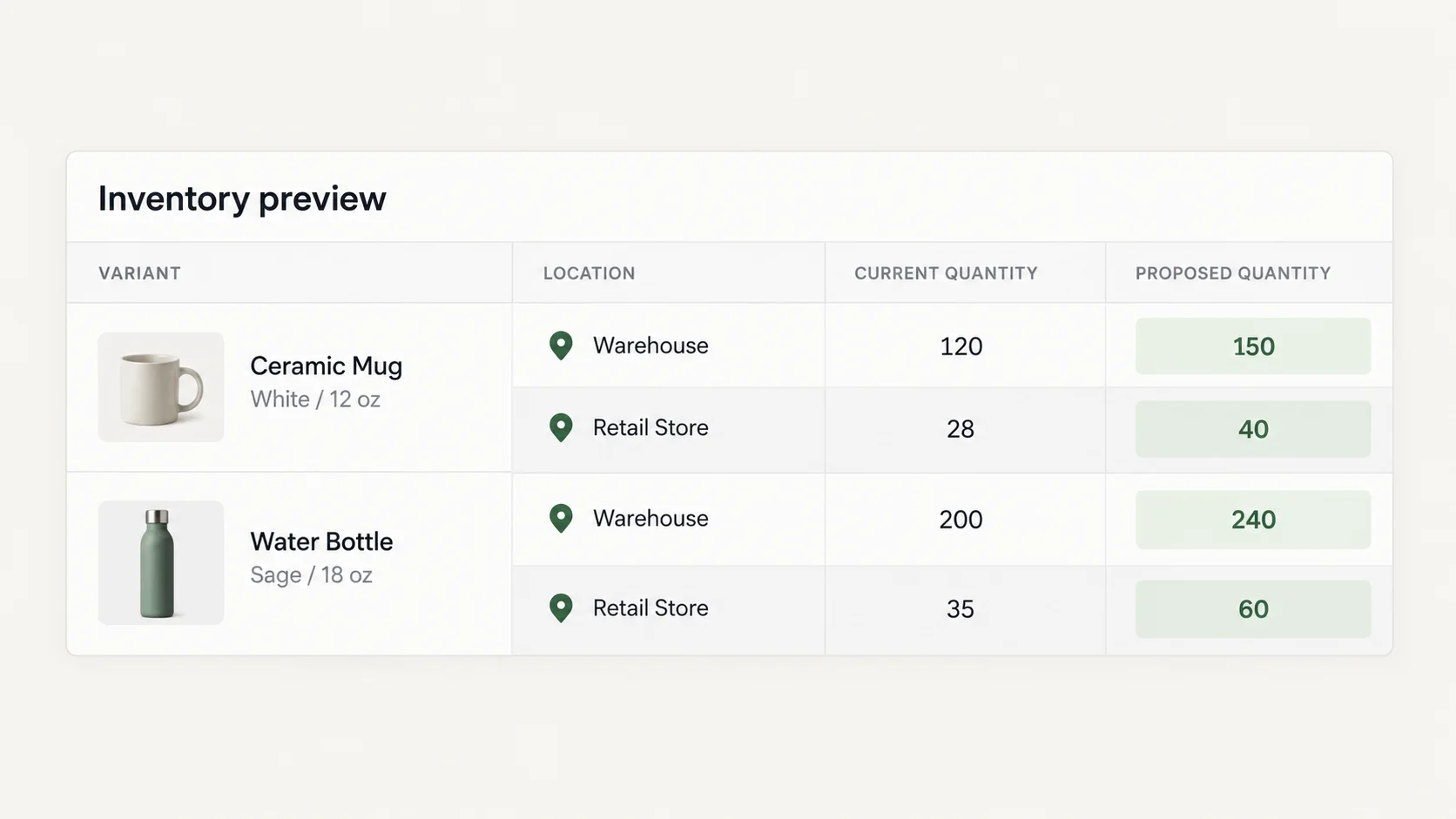
Stock is per variant, per location. An instruction that does not name a location applies to every location the store has, and the preview shows the split. A store with one location sees one column; a store with three sees three, and the job is three writes per variant.
A wrong price is a margin hit. A wrong quantity is a customer-facing failure: zero hides the product from the storefront, too high sells what you do not have, and both show up as a support ticket rather than a report. Read inventory previews more slowly than price previews, and read the location column first.
Locations run by a fulfilment service are read-only from the Shopify side. ApiMate reports that in the plan, as a skipped row with the reason, instead of attempting the write and failing halfway through the job. "Set" and "adjust" are different rules: "set stock to 20" writes 20; "add 20" writes current plus 20. Say which.
Instruction
Set stock to 20 at both locations for all snowboards.
- Name the location. "At the Manchester warehouse" is a scope; "in stock" is not.
- "Set" replaces the number. "Add" or "remove" adjusts it. The preview shows the resulting number either way.
- Variants with inventory tracking off are skipped with the reason. Turning tracking on is a separate change.
Before you approve
Four checks, in this order. They take a minute and they are the whole safety model.
- The count. Compare it to what you expected before you typed the instruction. Wrong count, wrong scope, decline.
- Five rows at random. Old value, new value, does the math match the rule, including the rounding.
- The edges: the cheapest and the most expensive variant in the list. Percent rules bite there.
- For stock: the location column. A job meant for one warehouse that lists two is the wrong job.
- For a sale: both fields are present on every row, and compare-at is above price on every row.
What happened after approval
One approval writes every row. A few hundred variants finish in seconds; a few thousand take a minute or two, and the job reports progress and the final count. When it finishes, it appears in history with the rows it wrote and the values they replaced, which is also your record of what changed and when.
To see the result in Shopify, open a product from the list and look at the variant table; the new prices are there. The storefront shows them on its next page load, subject to any caching your theme or CDN does. For inventory, the location breakdown is on the variant's inventory panel. If a row failed, the job says which and why, and the failed rows are not marked as written.
Revert
Every variant row stores the price, compare-at price or quantity it had before the write. Reverting builds a new job from those values, shows it as a preview, and writes it after approval. It touches the rows the original job changed and no others.
Inventory is reverted to the quantity at the moment of the change. If sales happened in between, revert still writes the old number, which is now too high by the units sold. For stock, revert is a starting point, not the truth: read the location before you approve the revert, or use a fresh "set" instruction with the counted number instead.
A price reverted a week later overwrites any hand edits made in between, on the rows it covers. The revert preview shows the current value next to the value it will restore, so a hand edit is visible as a row where "current" is not what the original job wrote.
Where the tool stops
A supplier feed that arrives every Monday belongs in a file-based tool or a sync app. The file is the source of truth and the columns do not change; a sentence adds a step, not safety. The comparison page with Matrixify says where that line is.
There is no scheduler. A sale that must end at midnight on Sunday is reverted by a person on Monday morning, or by a second instruction you send when the sale ends. If your sales run on a calendar, a task-based editor that schedules is the better tool for that part, and the comparison with QuickEdit says so.
Very large jobs run in batches and the plan says how many. A catalog with tens of thousands of variants is better split by vendor or collection, so each preview is one you can read.
Prices are written in the store currency. Market-specific prices set through Shopify Markets are a separate object and are not changed by a price job unless the instruction names the market.
Other ways to say the same job
These phrasings resolve to plans of the same shape. The scope line tells you whether they resolved to the scope you meant.
- "Increase all prices by 5%."
- "Everything from Cedar & Pine goes up 6%, round to .99."
- "Put the Winter collection on sale: 20% off, show the old price."
- "Set compare-at to the current price and drop the price by 15% for everything tagged clearance."
- "End the sale on Hydration products." (This is a revert, and the tool will say so.)
- "Set stock to 0 at the London location for everything tagged discontinued."
- "Add 50 units at the main warehouse for every variant of the Ridge Hoodie."
- "Which variants have a compare-at price lower than the price?" (A read; fix it with a second instruction.)
Terms used on this page
- Variant: the sellable unit under a product, one per option combination. Price and stock live here, not on the product.
- Compare-at price: the crossed-out price on a sale. Empty means no sale shown.
- Location: a place stock is held. Inventory is a number per variant per location.
- Scope: the set of variants a job applies to. Resolved before the plan; the count is the first line of the preview.
- Set vs adjust: "set" writes the number; "adjust" adds or subtracts from the current one.
- Revert: a new job that writes the saved previous values back to the rows the original job changed.
- Skipped row: a variant that matched the scope but not the rule, listed with the reason.
Questions
Is this change for all of my items?+
Only if the instruction says so. Scope is read literally: "all Hydration products" is the Hydration products, "XL variants" is the XL variants. The first line of the preview states the count.
Can I raise prices by a percentage and round to .99?+
Yes. Say the percentage and the rounding rule in the instruction. The preview shows the rounded value per row.
Can I end a sale automatically?+
No. There is no scheduler. Revert the job when the sale ends, or send a second instruction with the regular prices.
Does it handle compare-at prices?+
Yes. Price and compare-at price are separate fields in the same row. Say both in the instruction if the storefront should show a discount, and revert the job to end it.
What about multiple locations?+
Stock writes are per location. Name the location in the instruction or the plan covers every location, and the preview shows each one as its own row.
What happens if I approve the wrong scope?+
Revert the job from history. The saved values are written back through a new preview and approval, to exactly the rows the job changed.
Does revert fix inventory after sales happened?+
It writes the saved number, which does not account for units sold since. For stock, read the location and use a fresh "set" instruction if the count moved.
Can it change prices for one market only?+
Not in a plain price job. Market prices are a separate object; an instruction that names the market is planned separately, and the preview says which prices it touches.
Related
Run this on your own catalog
Install from the Shopify App Store. Every write shows its rows before it runs, and applied jobs can be reverted from history.