
Compare-at price is a variant field, and the free admin bulk editor edits it. Products, select the products, Bulk edit, add the compare-at price column through Columns if it is not shown, enter the values, Save. For a large catalog, export the product CSV, edit the Compare-at price column, and import with "Overwrite products with matching handles".
The field is easy; the sale around it is not. A sale is two numbers per variant, the old price moving to compare-at and the price dropping, and it has a start, an end and a cleanup. This guide follows that order. For the other fields Shopify can bulk edit, see the overview of Shopify bulk edit methods.
What compare-at price does
Compare-at price is the "was" price. When it is higher than the price, most themes show it struck through next to the price, often with a sale badge. When it is empty, or not higher than the price, the variant shows as full price.
It lives on the variant, next to price, so a product with five sizes has five of them. Count variants, not products, before you start. And it is a display field, not a discount: discount codes and automatic discounts apply at checkout and never touch this column. A sale that must end on its own at midnight is a discount, not a compare-at edit.
Start a sale
Before anything else, export the current prices and compare-at values. That file is how the sale ends, and nobody regrets having it.
In the admin: Products, filter to the products on sale, select them, Bulk edit. Shopify's bulk editing page names price, SKU and compare-at price among the fields you can edit. Add the column through Columns if it is not shown. Edit two columns per variant: copy the current price into compare-at, then type the sale price. Save. Rows that fail stay marked; fix them and Save again. Nothing can be undone after Save.
By CSV: export, edit Price and Compare-at price, import with "Overwrite products with matching handles". Each variant is its own row with the URL handle repeated, so a formula runs per row. Keep only URL handle, Title, the option columns, Price and Compare-at price in the file. Keep the option columns: without them Shopify deletes the existing variants and creates a default one.
Two checks before Save or import. Filter for variants that already have a compare-at above price; a sale on top of a markdown is often below cost. And put the sale on every size: a sale applied at product level and fixed by hand per size is how one size stays at full price. See bulk editing variants for that side.
Percent off across a collection
The bulk editor has no formula. A 20 percent sale on 300 variants is 600 typed values, so a percentage has to be worked out somewhere first.
In a spreadsheet, the sale formula is compare-at = old price, price = old price times 0.8, rounded the way you want. Round in the sheet: 23.992 is not a price. A blank Price cell imports as 0.00, so filter for empty prices before importing. There is also a Compare-at price / International column; leave it out of the file unless you use it, because an included blank column is a column of clears.
Ablestar, Hextom and Matrixify run "set compare-at to current price, then lower price by 20 percent" as one task with filters, and several can schedule the end. Check whether a task skips variants already on sale and whether ending it restores the compare-at values that were there before, including empty ones. Backup windows and scheduling depend on app and plan.
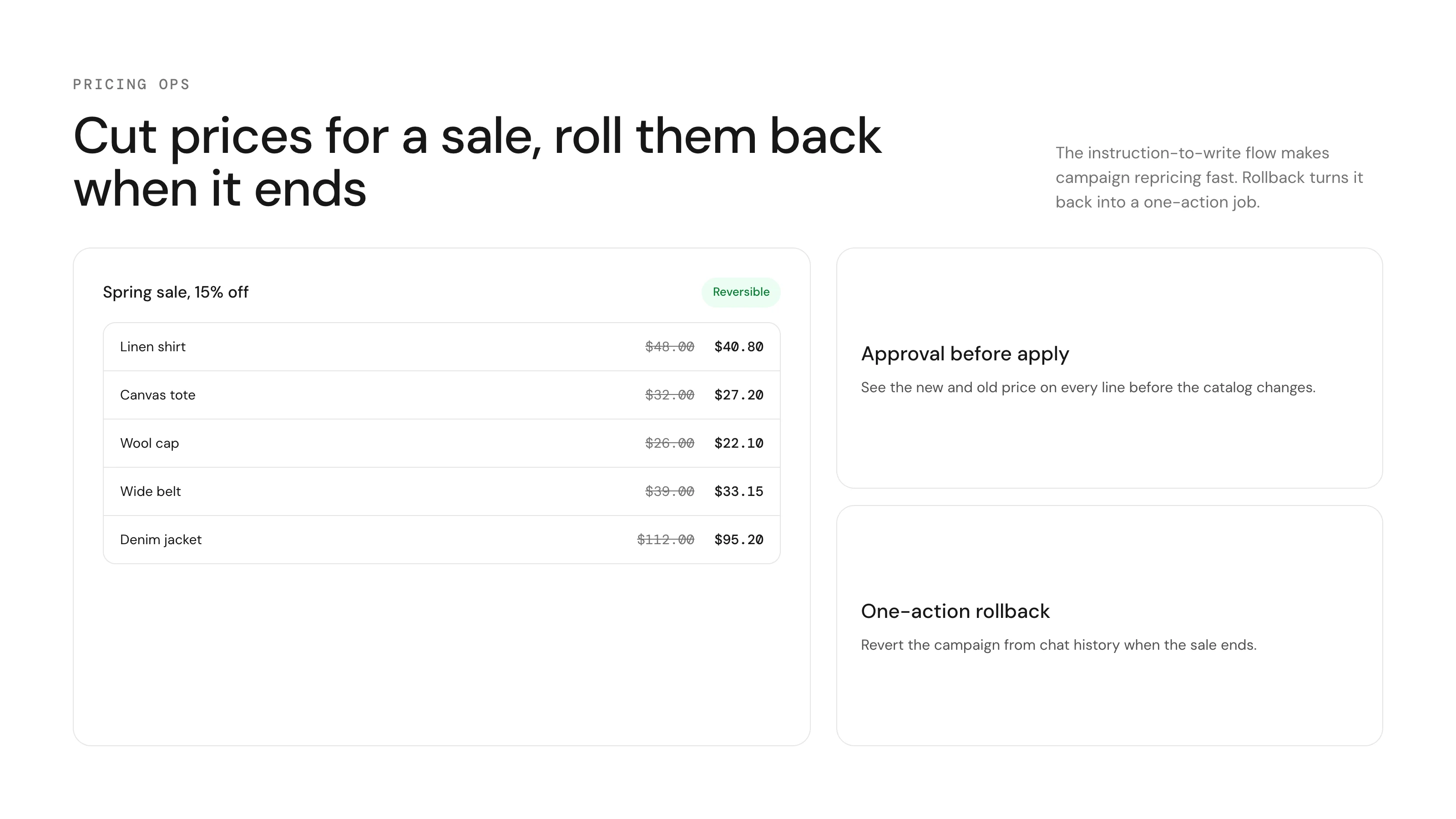
In ApiMate the sale is a sentence: "20 percent off the Summer collection, never below cost." It copies each variant's price into compare-at and lowers the price, rounded half-up. A price that would fall below unit cost plus the margin you name is held at the floor; a variant with no room above cost is skipped, and so is one already on sale. Variants with no unit cost get the full discount under their own heading. Every row is shown before anything is written, and the free plan covers small jobs.
| Route | Does the math | Floor at cost | Ends the sale |
|---|---|---|---|
| Admin bulk editor | No | No | By hand, from your export |
| CSV | In the sheet | If you add the formula | Re-import the old file |
| Bulk-edit app | Yes | Depends on app | Often scheduled |
| ApiMate | Yes | Yes | Undo on the task |
End a sale
Ending is the start in reverse: the compare-at value goes back into Price and compare-at is cleared. In the bulk editor that is two columns again. By CSV, put the old price in Price and leave Compare-at price blank; with overwrite on, a blank cell in an included column is written as blank, which is what clears it here.
Order matters if you kept no export. Compare-at is then the only record of the old price, and clearing it first loses it. Copy it into Price, then clear.
In ApiMate, the end of a sale is Undo on the sale task, not a second sale. It writes back the exact old price and old compare-at for every variant, including a compare-at that was empty before. For other ways back after a bad write, see how to undo a bulk edit in Shopify.
Find stale compare-at prices
Most compare-at problems are not the sale; they are what is left after it. A price lowered for a reason that is not a sale (a cost drop, a competitor) keeps its old compare-at, and the store shows a permanent sale nobody planned. A price raised above an old compare-at, say from 40 with compare-at 50 to 55, leaves a "was" price lower than the price; depending on the theme it shows nothing or a struck-through price cheaper than the current one.
After any price change, filter for compare-at at or below price and clear those. ApiMate flags both cases on ordinary price changes and asks whether to clear them; the bulk price update case shows a full run.
Decide the end before the start
By hand, re-import, app schedule or Undo: pick one before the first price changes, and keep the pre-sale export either way.
| Situation | Price | Compare-at | What to do |
|---|---|---|---|
| Start a sale | Lower it | Old price | Edit both in one pass |
| End a sale | Back to old price | Clear it | Edit both in one pass |
| Permanent price cut, no sale | Lower it | Clear it if set | Check for old compare-at values first |
| Price rise | Raise it | Clear it if below new price | Filter for compare-at under price after |
Every row edits two fields. A job that edits one is usually the mistake.
Questions
Can I bulk edit compare-at prices in Shopify?+
Yes. The admin bulk editor edits compare-at price per variant, and the product CSV has a Compare-at price column for large catalogs.
How do I remove compare-at prices from many products?+
In the bulk editor, clear the compare-at cells and Save. By CSV, include the Compare-at price column with blank cells and import with overwrite on; a blank cell clears the value.
How do I put many products on sale in Shopify?+
Copy each variant's current price into compare-at, then lower the price. The bulk editor needs both typed by hand; a CSV or an app can do the arithmetic.
Why does my product still show as on sale?+
Its compare-at price is still higher than its price. Clear the compare-at value, or set it equal to or below the price.
Is compare-at price the same as a discount?+
No. Compare-at changes the displayed price on the product. Discount codes and automatic discounts apply at checkout and leave the product price as it is.
Related
- How to bulk edit Shopify productsAdmin, CSV, apps, chat: what each one is for.
- Bulk update prices and inventory in Shopify, with undoThe chat path, row by row.
- How to bulk edit variants in ShopifyPrices, SKUs and options at the variant level.
- How to undo a bulk edit in ShopifyWhat each method gives you after a bad write.
Run this on your own catalog
Install from the Shopify App Store. Every write shows its rows before it runs, and applied jobs can be reverted from history.