
With a bulk action. In Products, tick the products, open the actions menu, choose Add to collection, and pick the collection. Use "Select all 50+ items" or "Select all results" to take the whole filtered list. Remove from collection is the same path in reverse. Both work on manual collections. Our overview of every Shopify bulk edit method covers the other fields.
A smart (automated) collection takes products by its conditions, so it has no "add" button: you change the product, usually its tag or type, and the collection picks it up. That is the better choice for anything that should stay current, and the place merchants get stuck, because the condition wording decides what matches.
So the first question is not how to add products. It is which kind of collection you want, because the answer decides whether you touch the collection or the products.
Manual or smart: decide first
Shopify has two kinds of collection. A manual collection holds exactly the products you put in it, and nothing changes until you add or remove one. A smart collection holds every product that meets its conditions, such as "tag equals summer" or "product type equals Jacket", and updates itself as products change.
The type is chosen when the collection is created. If the collection should follow a rule ("everything from this vendor", "everything under 20 dollars"), make it smart and stop adding products by hand. If it is a curated pick ("staff favourites"), make it manual. Adding by hand to a collection that should be smart is correct on the day and wrong a month later, when 40 new products arrive and nobody adds them.
| Manual collection | Smart collection | |
|---|---|---|
| How products get in | You add them | They meet the conditions |
| Add to collection bulk action | Yes | No, change the product instead |
| New products | Stay out until added | Join if they match |
| Best for | Curated picks, campaigns | Vendor, type, tag, price ranges |
Manual: tick and add
Products, filter the list (vendor, type, tag, status, or a search), tick the header checkbox, then choose "Select all 50+ items" or "Select all results" to go past the visible page. The header checkbox alone selects only the page you can see. Open the actions menu and choose Add to collection, pick one or more manual collections, and confirm.
Remove from collection works the same way, and it is the undo for an add. Write down the filter you used, because the undo needs the same selection. On the mobile app the selection is 25 products at a time, so a large job belongs on desktop. If a smart collection is missing from the picker, that is why: it takes products by its conditions.
Smart: write the rule once
For a smart collection, the bulk edit is on the products, not on the collection. Tag the products ("summer-26"), and a collection with the condition "Product tag is equal to summer-26" takes all of them. Add the tag to next season's products and they join without anyone opening the collection. Bulk editing tags covers the Add tags and Remove tags actions that do this.
Some conditions compare text ("title contains"), so a word inside another word matches too. "Title contains cap" takes "Capri pants". Tags and product types are safer keys than titles.
All or any
Products must match all conditions, or any condition. "Tag is summer and vendor is Northline" on all is the overlap. On any, it is every summer product plus every Northline product, and the storefront shows a collection twice the size you expected. Read the product count on the collection page after saving.
By CSV
The product CSV has a Collection column. It is not in the export, so add the header yourself. Each product row takes one collection name, up to 255 characters. If the collection does not exist, the import creates it; if the collection is smart, the product still has to meet its conditions.
One collection per product per import is the limit that matters. For a product that belongs in three collections, the CSV is three imports or the wrong tool. For a one-off "put these 600 products in Outlet", it works: URL handle, Title and Collection, imported with "Overwrite products with matching handles" on. Keep only those columns, since blank cells in kept columns are written as blank. The CSV cannot take a product out of a collection, and because the column is not exported, it is no record of who was in what.
Worked example: a summer sale collection
Say 60 products go on sale for the summer, and more will join in July. The manual route: filter Products by tag or vendor, select all results, Add to collection "Summer sale", and repeat the add in July for the new arrivals. When the sale ends, the same filter and Remove from collection.
The smart route: create "Summer sale" with one condition, "Product tag is equal to summer-sale", then Add tags "summer-sale" to the 60 products. The July products join when they get the tag. When the sale ends, Remove tags empties the collection and the collection itself can stay for next year. For a sale that grows, this is less work and fewer chances to miss a product.
Either way, build the collection unpublished, read the count, then publish. A new collection with three products shows up in navigation if a menu already points at it.
- Ask a count before you build: "how many active products have the tag summer-sale?"
- Sale prices are a separate job; the bulk price update case covers them.
- Read how to undo a bulk edit in Shopify before a large add.
Apps and chat
Bulk-edit apps add filters the admin list lacks, such as "variant price under 20" or "inventory below 5", and add the matching products to a manual collection. If that job runs every week, the collection probably wants to be smart.
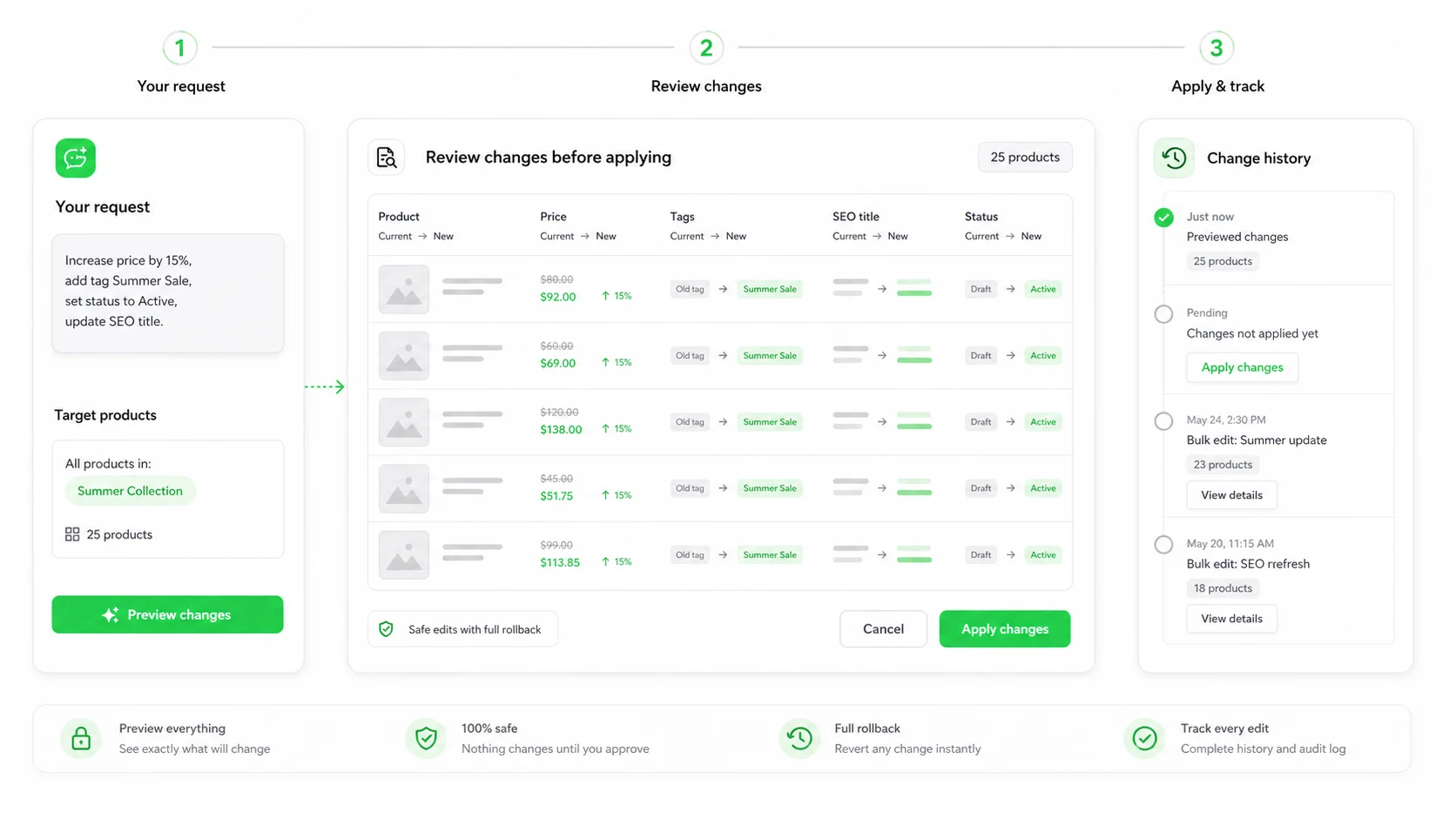
ApiMate takes the collection as a sentence: "create a smart collection Under $25 with every active product whose variant price is under 25, unpublished". The preview shows the conditions in plain words, all or any, and the products that match today; nothing is created until you approve, and the free plan covers a small job. Reverting a run deletes a collection it created. Taking products back out of an existing manual collection is a separate instruction, not an automatic undo of the add.
Questions
How do I add multiple products to a collection in Shopify?+
In Products, select them, open the actions menu and choose Add to collection. Use "Select all results" to include products beyond the visible page.
Why can't I add products to my smart collection?+
Smart collections take products by their conditions. Change the products, usually a tag or product type, so they match.
Can I add products to a collection with a CSV?+
Yes, with a Collection column you add yourself. One collection per product, up to 255 characters, created if it does not exist. The column is not exported.
How do I remove many products from a collection?+
Select them in Products and choose Remove from collection. For a smart collection, change the products or the conditions so they no longer match.
Should I use all conditions or any condition?+
All for an overlap, such as summer products from one vendor. Any for a union. Check the product count after saving either way.
Related
- How to bulk edit Shopify productsAdmin, CSV, apps and chat: which fields each one reaches.
- How to bulk edit tags in ShopifyThe tags that smart collections match on.
- Clean up imported productsTypes, vendors and tags fixed before they feed collections.
- How to undo a bulk edit in ShopifyWhat each method gives you after a bad write.
Run this on your own catalog
Install from the Shopify App Store. Every write shows its rows before it runs, and applied jobs can be reverted from history.